
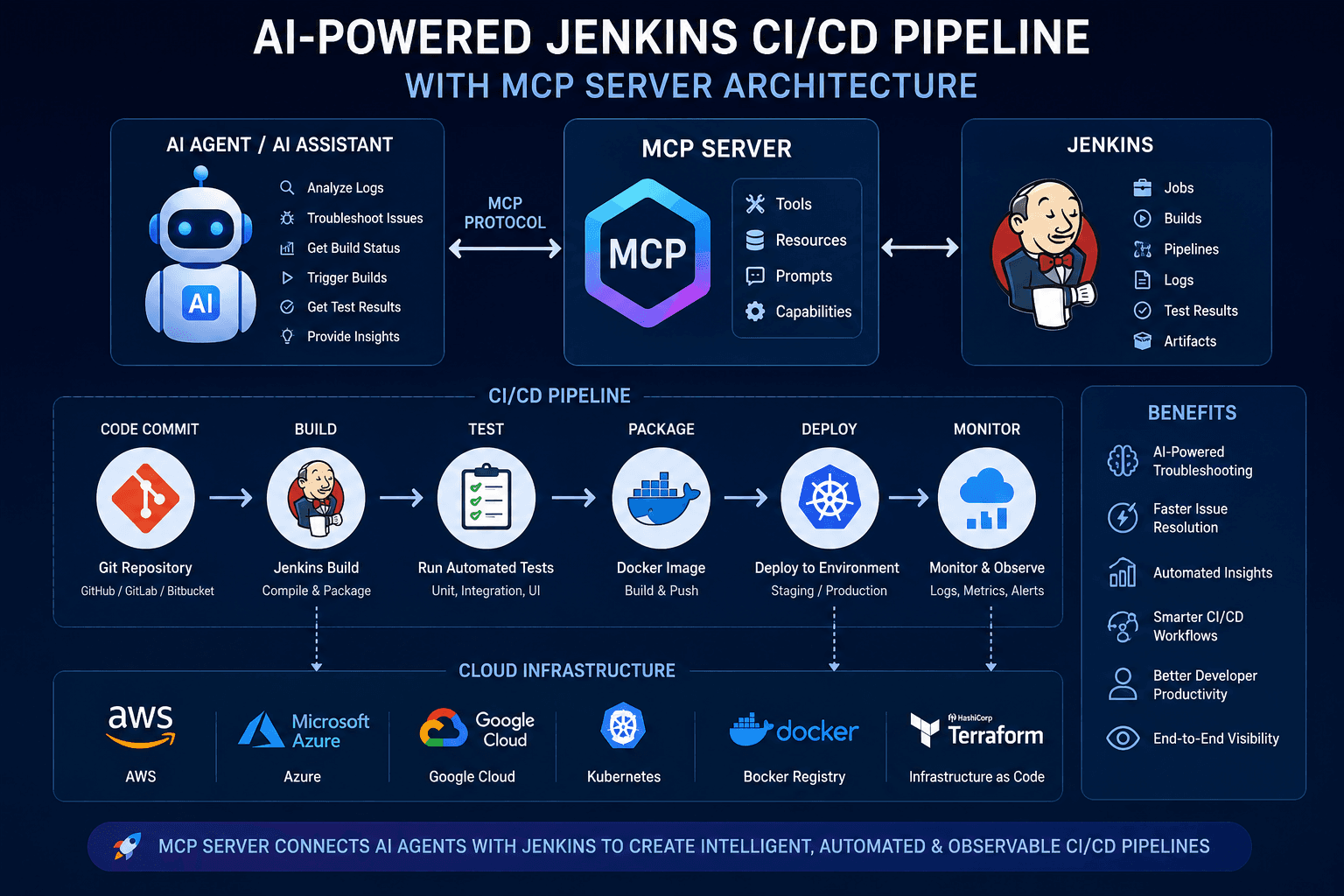
"Learn how to connect an MCP Server with Jenkins and use AI to investigate build failures, analyze Jenkins logs, inspect jobs, trigger builds, and troubleshoot CI/CD issues faster."
How to Use an MCP Server with Jenkins to Troubleshoot and Resolve CI/CD Issues.
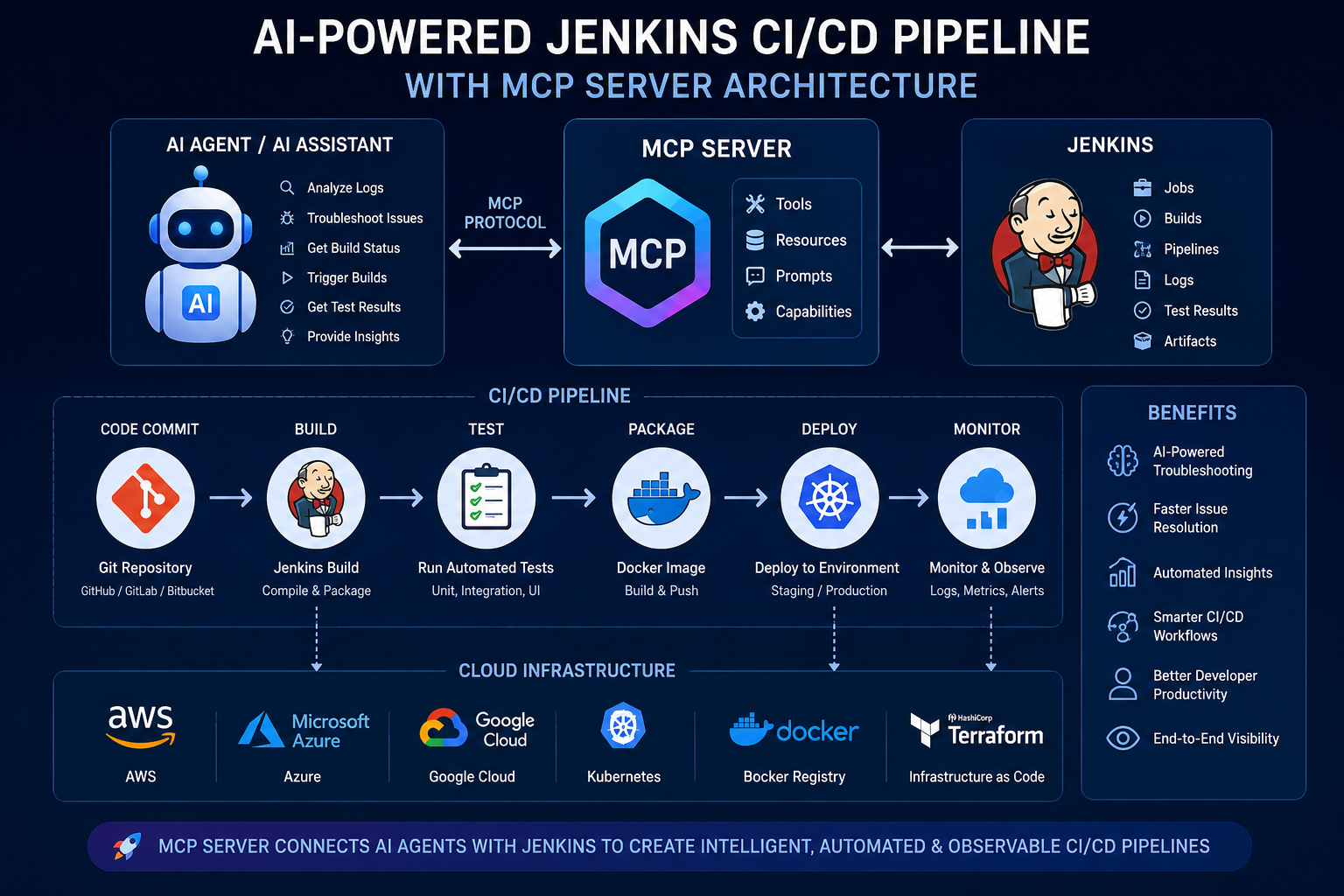
Modern DevOps teams manage increasingly complex CI/CD pipelines involving Jenkins, Git, Docker, Kubernetes, cloud infrastructure, automated testing, and deployment tools. When a pipeline fails, engineers often spend valuable time opening Jenkins, finding the failed build, reading thousands of log lines, identifying the root cause, and manually triggering another build.
An MCP Server with Jenkins can simplify this workflow by allowing an AI-powered MCP client or agent to interact with Jenkins using structured tools.
Instead of manually searching through Jenkins dashboards, you can ask an AI agent questions such as:
"Why did the latest Jenkins build fail?"
or:
"Check the build logs, identify the error, and tell me what needs to be fixed."
With the Jenkins MCP Server plugin, Jenkins can expose capabilities such as job discovery, build triggering, build-log searching, test-result retrieval, and build replay through MCP tools.
This article explains how MCP works with Jenkins, how to configure the integration, how it helps troubleshoot CI/CD problems, and how to use it safely in a production DevOps environment.
What Is MCP?
MCP, or Model Context Protocol, is a protocol designed to connect AI applications with external systems and tools.
In a traditional AI workflow, an AI model may understand your question but have no direct access to your Jenkins environment.
MCP provides a standardized way for an AI client to discover and use capabilities exposed by an MCP server.
MCP servers can expose three important primitives:
Tools — actions an AI model can execute
Resources — contextual information an application can retrieve
Prompts — reusable interaction templates
Tools are particularly useful for DevOps because they allow an AI agent to interact with external systems instead of simply generating text.
For example:
AI Agent
   |
   | MCP
   v
MCP Server
   |
   v
Jenkins
   |
   +---- Jobs
   +---- Builds
   +---- Build Logs
   +---- Test Results
   +---- Pipeline
This architecture allows Jenkins information and actions to become accessible to an MCP-compatible AI client.
What Is a Jenkins MCP Server?
The Jenkins MCP Server plugin implements the server side of the Model Context Protocol for Jenkins.
After installing and configuring the plugin, MCP clients can connect to Jenkins and interact with supported Jenkins capabilities.
The plugin currently provides tools for operations including:
Getting Jenkins jobs
Listing jobs
Triggering builds
Searching build logs
Retrieving test results
Rebuilding builds
Retrieving replayable Pipeline scripts
Replaying eligible Pipeline builds
The plugin documentation currently lists Jenkins 2.533 or higher as a prerequisite for the current plugin release. Always verify compatibility before installing it in an existing environment.
Why Use MCP with Jenkins?
A normal Jenkins troubleshooting workflow often looks like this:
Build fails
   ↓
Open Jenkins
   ↓
Find the job
   ↓
Open failed build
   ↓
Read console output
   ↓
Search for error
   ↓
Identify root cause
   ↓
Fix configuration/code
   ↓
Run build again
With an MCP-enabled AI workflow, the process can become:
Engineer asks AI
   ↓
AI connects through MCP
   ↓
Jenkins build information retrieved
   ↓
Build logs analyzed
   ↓
Likely root cause identified
   ↓
Recommended solution generated
   ↓
Engineer approves action
   ↓
Build triggered
The important point is that MCP does not magically fix every Jenkins problem. It provides a standardized interface through which an AI client can access Jenkins capabilities.
Common Jenkins Problems MCP Can Help Investigate
An MCP-enabled Jenkins workflow can be useful for investigating problems such as:
1. Build Failures
For example:
"Check the latest build of payment-service and explain why it failed."The AI agent can retrieve relevant Jenkins information and analyze the available build output.
2. Docker Build Failures
Example:
"Search the latest build log for Docker errors."Potential issues include:
Dockerfile errors
Missing dependencies
Failed package installation
Incorrect image tags
Registry authentication failures
Docker daemon problems
3. Unit Test Failures
You can ask:
"Check the latest test results and identify which tests failed."This can reduce the amount of manual Jenkins navigation required.
4. Deployment Failures
For Kubernetes-based deployments, the Jenkins build may fail because of:
Invalid Kubernetes manifests
Image pull failures
Authentication issues
Missing secrets
Incorrect environment variables
Deployment timeouts
MCP can help retrieve the Jenkins-side evidence needed to investigate the failure.
5. Repeated Build Failures
If the same Jenkins job repeatedly fails, an AI agent can analyze recurring log patterns and help identify the underlying issue instead of treating every failed build as a new problem.
How the Jenkins MCP Architecture Works
A typical architecture looks like this:
                 ┌─────────────────────┐
                 │      AI Client      │
                 │  Claude / IDE / AI  │
                 └──────────┬──────────┘
                            │
                            │ MCP
                            ▼
                 ┌─────────────────────┐
                 │    Jenkins MCP      │
                 │       Server        │
                 └──────────┬──────────┘
                            │
                            ▼
                 ┌─────────────────────┐
                 │       Jenkins       │
                 │                     │
                 │ Jobs                │
                 │ Builds              │
                 │ Logs                │
                 │ Tests               │
                 │ Pipelines           │
                 └─────────────────────┘
The AI client communicates with the MCP endpoint, while Jenkins remains the system where the actual CI/CD jobs and permissions are managed.
Step 1: Prepare Jenkins
Before integrating MCP, make sure Jenkins is working correctly.
You should have:
A running Jenkins controller
At least one Jenkins job or Pipeline
A Jenkins user account
Appropriate permissions
HTTPS for production environments
A Jenkins API token for authentication
For production environments, avoid exposing Jenkins directly to the public internet without appropriate network and authentication controls.
Step 2: Install the Jenkins MCP Server Plugin
The Jenkins MCP Server is available as a Jenkins plugin.
The current plugin documentation provides installation options through the Jenkins Plugin Manager and CLI. The current release listed by Jenkins is 0.178.vffe5a_e770f3b_, although plugin versions can change over time.
You can install it using the Jenkins Plugin Manager:
Manage Jenkins
      ↓
Plugins
      ↓
Available Plugins
      ↓
Search: MCP Server
      ↓
Install
After installation, restart Jenkins if required.
Step 3: Configure MCP Authentication
The Jenkins MCP Server uses the same Jenkins authentication model as Jenkins itself.
A common approach is:
Jenkins Username
        +
Jenkins API Token
        ↓
HTTP Basic Authentication
        ↓
MCP Endpoint
The Jenkins documentation explains how to generate a personal API token from the user's Security settings.
For example:
Username: devops-user
API Token: <secure-token>
Do not place real Jenkins credentials directly inside source code, Git repositories, public configuration files, or blog examples.
The Jenkins documentation also notes that Base64 encoding is not encryption, so encoded credentials must still be protected like the original credentials.
Step 4: Connect an MCP Client
The Jenkins MCP Server provides multiple transport endpoints.
The current plugin documentation recommends Streamable HTTP for most connections because it provides better connection resilience than the older SSE approach.
The Streamable HTTP endpoint is:
https://YOUR-JENKINS-URL/mcp-server/mcpFor example:
https://jenkins.example.com/mcp-server/mcpA generic MCP client configuration can look like:
{
  "servers": {
    "jenkins": {
      "type": "http",
      "url": "https://jenkins.example.com/mcp-server/mcp",
      "requestInit": {
        "headers": {
          "Authorization": "Basic <BASE64_CREDENTIALS>"
        }
      }
    }
  }
}
Use the exact configuration format required by your MCP client.
Step 5: Test the MCP Connection
After configuring the MCP client, verify that it can discover the Jenkins tools.
For example, the client may expose capabilities related to:
getJob
getJobs
triggerBuild
searchBuildLog
getTestResults
rebuildBuild
The exact available tools can change as the Jenkins MCP plugin evolves, so check the installed plugin documentation before building automation around a specific tool.
Step 6: Troubleshoot a Failed Jenkins Build with MCP
Now we can use the integration for a real DevOps troubleshooting scenario.
Imagine a Jenkins Pipeline fails:
Build #248
Status: FAILURE
Instead of manually opening the console log, you could ask your MCP-enabled AI client:
Analyze the latest failed Jenkins build for my application.
Find the relevant error in the build log and explain the root cause.
The workflow becomes:
AI Request
    ↓
MCP Client
    ↓
Jenkins MCP Server
    ↓
Jenkins Build Information
    ↓
Build Log
    ↓
AI Analysis
    ↓
Root Cause + Suggested Fix
For example, the AI may identify:
Error:
npm ERR! missing dependency

Likely Cause:
The package-lock.json and package.json are inconsistent.

Recommended Action:
Regenerate the lock file and run the build again.
The engineer can then review the recommendation before making changes.
Step 7: Search Jenkins Logs Efficiently
Large Jenkins console logs can contain thousands of lines.
Instead of manually scrolling through them, the Jenkins MCP plugin provides a build-log search capability.
You can ask:
Search the latest Jenkins build log for:
ERROR
Exception
failed
permission denied
timeout
docker
npm
terraform
This makes troubleshooting much faster because the relevant log information can be isolated before deeper analysis.
Step 8: Trigger a Jenkins Build Through MCP
After fixing the root cause, an MCP-enabled client can also trigger supported Jenkins builds.
For example:
Trigger the payment-service Jenkins job using:
BRANCH=main
ENVIRONMENT=staging
The Jenkins MCP plugin supports triggering builds and passing parameters for supported Jenkins parameter types.
A conceptual request could look like:
{
  "jobFullName": "payment-service",
  "parameters": {
    "BRANCH": "main",
    "ENVIRONMENT": "staging"
  }
}
This allows an AI-assisted workflow to move from:
Detect → Analyze → Recommendtoward:
Detect → Analyze → Recommend → ExecuteHowever, execution should be protected by appropriate Jenkins permissions and human approval for sensitive operations.
Real-World Example: Docker Build Failure
Consider this Jenkins Pipeline:
GitHub
   ↓
Jenkins
   ↓
Docker Build
   ↓
Docker Push
   ↓
Kubernetes Deployment
Suppose the Docker build fails.
The Jenkins log contains:
ERROR: failed to solve
failed to fetch metadata
unauthorized: authentication required
Instead of manually investigating the entire log, ask:
Check the latest Jenkins build failure.
Search for Docker-related errors.
Explain the root cause and recommend the next troubleshooting step.
The AI can identify that the failure is related to registry authentication and suggest checking:
Docker registry credentials
Jenkins credentials configuration
Registry permissions
Image repository name
Docker login configuration
Expired authentication tokens
This is particularly useful for DevOps teams managing multiple pipelines.
Real-World Example: Kubernetes Deployment Failure
Consider:
GitHub
   ↓
Jenkins
   ↓
Docker Build
   ↓
Amazon ECR
   ↓
Amazon EKS
Suppose the Jenkins deployment stage fails.
The AI-assisted workflow can help investigate Jenkins logs for messages such as:
ImagePullBackOff
Forbidden
Unauthorized
CrashLoopBackOff
deployment exceeded its progress deadline
You could ask:
Analyze the failed Kubernetes deployment stage in the latest Jenkins build.
Identify the error and explain whether it appears to be an image,
authentication, permissions, or deployment configuration issue.
This creates a much more conversational troubleshooting workflow for DevOps engineers.
MCP + Jenkins for DevOps Automation
The biggest advantage is not simply asking an AI to read Jenkins logs.
The real value comes from connecting multiple DevOps systems.
A future-oriented architecture can look like:
                 AI Agent
                    │
                    │ MCP
                    ▼
             ┌──────────────┐
             │ MCP Servers  │
             └──────┬───────┘
                    │
       ┌────────────┼────────────┐
       ▼            ▼            ▼
    Jenkins       GitHub       AWS
       │            │            │
       ▼            ▼            ▼
    Builds        Code        Cloud
    Logs          PRs         Resources
    Tests         Commits     Infrastructure
This can allow an AI agent to reason across multiple parts of a DevOps environment.
For example:
"Why did today's production deployment fail?"The investigation could potentially involve:
Git commit
     ↓
Jenkins build
     ↓
Build logs
     ↓
Docker image
     ↓
Deployment
     ↓
Infrastructure
This is where MCP becomes especially interesting for AI-powered DevOps workflows.
MCP Server vs Traditional Jenkins CLI
Jenkins already provides a CLI for scripting and routine administration.
So why use MCP?
The difference is primarily the interaction model.
Jenkins CLI
Script
   ↓
Jenkins CLI
   ↓
Jenkins
Jenkins API
Application
   ↓
Jenkins API
   ↓
Jenkins
MCP
AI Agent
   ↓
MCP Client
   ↓
MCP Server
   ↓
Jenkins
The MCP approach is useful when you want an AI application to discover and use structured Jenkins capabilities rather than building a custom integration for every AI client.
Security Best Practices for Jenkins MCP
Connecting AI systems to CI/CD infrastructure introduces additional security considerations.
1. Use Least-Privilege Jenkins Permissions
Do not give an AI-connected Jenkins account administrator access unless absolutely necessary.
Grant only the permissions required for the intended workflow.
2. Protect API Tokens
Never commit credentials such as:
JENKINS_USERNAME
JENKINS_API_TOKEN
to Git repositories.
Use:
Jenkins Credentials
Secret managers
Environment variables
Secure CI/CD variables
3. Use HTTPS
For production environments, use HTTPS for MCP communication.
Example:
https://jenkins.example.com/mcp-server/mcpAvoid sending authentication credentials over an unsecured public HTTP connection.
4. Require Human Approval for Destructive Actions
Reading build logs is relatively low risk.
Actions such as:
Delete jobs
Deploy production
Modify Pipeline scripts
Replay builds
Change infrastructure
can have significant consequences.
Use approval controls and Jenkins permissions for sensitive operations.
5. Validate MCP Origin and Network Access
The Jenkins MCP plugin documentation provides configuration options for Origin header validation and endpoint controls. It also recommends appropriate reverse-proxy timeout configuration for production deployments.
MCP should be treated as part of your production security boundary, not simply as another development tool.
Common MCP + Jenkins Problems and Solutions
ProblemPossible CauseRecommended CheckMCP client cannot connectIncorrect endpointVerify /mcp-server/mcpAuthentication failureInvalid API tokenGenerate a new Jenkins API tokenBuild cannot be triggeredInsufficient permissionsCheck Jenkins job permissionsLogs are incompleteLog size or search limitationsNarrow the search patternConnection dropsProxy timeoutCheck Jenkins/reverse-proxy timeout settingsMCP tools unavailablePlugin/version issueCheck installed MCP Server pluginHTTPS connection failsCertificate/proxy configurationVerify TLS and reverse proxyAI performs unexpected actionExcessive permissionsApply least-privilege access
MCP and the Future of AI-Powered DevOps
MCP is becoming an important integration layer between AI applications and external tools.
The MCP specification continues to evolve, with the July 28, 2026 specification introducing changes including a stateless protocol core, authorization improvements, caching capabilities, and other protocol updates.
For DevOps teams, this opens the possibility of building AI-assisted workflows around:
Jenkins
GitHub
Kubernetes
AWS
Docker
Terraform
Monitoring platforms
Incident-management systems
Cloud infrastructure
Instead of replacing DevOps engineers, these integrations can help engineers spend less time searching dashboards and repetitive logs and more time solving actual infrastructure and application problems.
Best Use Cases for Jenkins MCP
The most practical use cases include:
CI/CD Troubleshooting
Automatically investigate failed Jenkins builds and summarize relevant errors.
Build Log Analysis
Search large logs for specific patterns and identify likely failure points.
Test Failure Analysis
Retrieve test results and identify failing test suites.
Build Automation
Trigger parameterized Jenkins builds after an engineer approves the action.
Deployment Investigation
Analyze Jenkins deployment stages and identify potential configuration or authentication problems.
DevOps Assistant
Create an internal AI assistant capable of answering questions about Jenkins jobs, builds, logs, and test results.
Final Thoughts
Integrating an MCP Server with Jenkins can transform Jenkins from a dashboard that engineers manually inspect into a system that AI-powered tools can interact with through standardized capabilities.
The basic architecture is simple:
AI Client
    ↓
MCP
    ↓
Jenkins MCP Server
    ↓
Jenkins
    ↓
Builds / Logs / Tests / Pipelines
The most valuable use case is not simply asking AI to "look at Jenkins."
It is creating a controlled workflow where AI can:
Understand the problem
        ↓
Collect Jenkins context
        ↓
Analyze logs
        ↓
Identify likely root cause
        ↓
Recommend a solution
        ↓
Request approval
        ↓
Execute an approved action
        ↓
Verify the result
For DevOps teams, this can significantly improve the speed of CI/CD troubleshooting while keeping engineers in control of production-impacting decisions.
The key is to combine MCP, Jenkins permissions, secure authentication, human approval, and well-defined automation boundaries rather than giving an AI unrestricted access to your CI/CD infrastructure.
FAQ
What is MCP in DevOps?
MCP, or Model Context Protocol, provides a standardized way for AI applications to interact with external tools and systems. In DevOps, it can connect AI agents with platforms such as Jenkins, cloud services, repositories, and monitoring tools.
Can MCP trigger Jenkins builds?
Yes. The Jenkins MCP Server plugin provides a triggerBuild capability for supported Jenkins jobs and parameters.
Can MCP analyze Jenkins build logs?
Yes. The Jenkins MCP Server plugin provides build-log search functionality that can help retrieve relevant log information for troubleshooting.
Is Jenkins MCP safe for production?
It can be used in production with appropriate security controls. Use HTTPS, least-privilege Jenkins permissions, protected API tokens, network restrictions, and human approval for sensitive actions.
What MCP transport should I use with Jenkins?
The current Jenkins MCP Server plugin documentation recommends Streamable HTTP for most connections because of its connection resilience.
Can MCP replace Jenkins?
No. MCP is an integration protocol. Jenkins continues to perform the actual CI/CD automation, while MCP provides a standardized interface through which compatible AI clients can interact with supported Jenkins capabilities.
Conclusion
MCP + Jenkins is a powerful combination for AI-assisted DevOps.
By connecting an MCP-compatible AI client to Jenkins, teams can simplify build troubleshooting, analyze logs, inspect test failures, trigger approved builds, and create more intelligent CI/CD workflows.
If your team is already using Jenkins, adding MCP can be a practical first step toward building an AI-powered DevOps assistant without replacing the CI/CD infrastructure you already depend on.